Quick Answer:
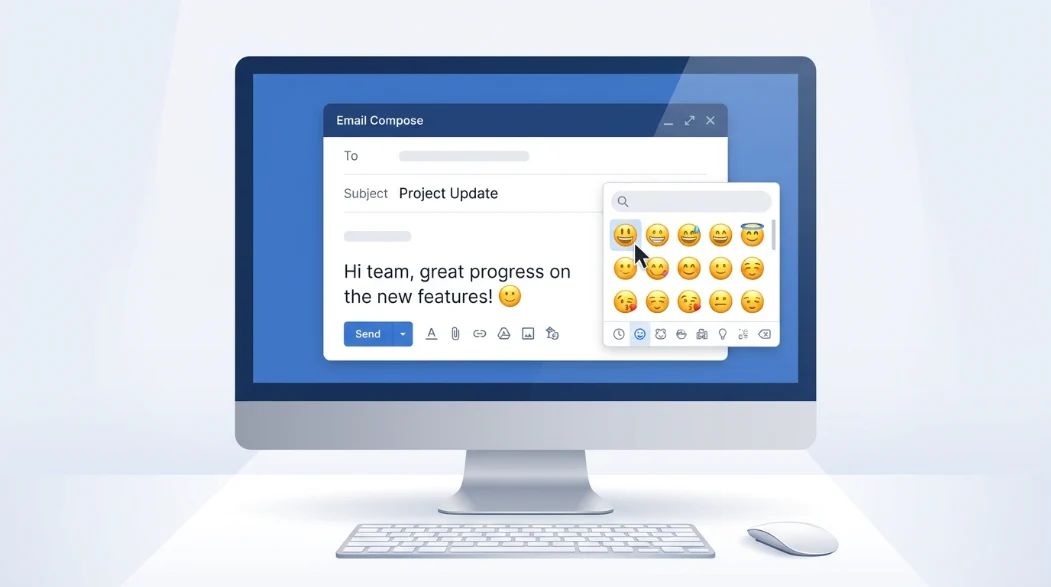
To insert an emoji in Outlook on Windows, place your cursor in the email and press Windows key + . (period), then choose an emoji from the picker. New Outlook and Outlook on the web also provide an emoji button in the message window.
Adding an emoji to an Outlook email is a quick way to make a message feel warmer, more expressive, or easier to understand. Whether you want to add a simple 🙂 to a casual note, a 👍 to acknowledge something, or 🎉 to celebrate good news, Outlook provides several ways to insert emojis while composing an email. The exact option you see can depend on whether you use new Outlook, classic Outlook, Outlook on the web, or a Mac.
For Windows users, the fastest method is usually the built in emoji picker. Place the cursor where you want the emoji, press Windows key + period, and select the emoji you want. Outlook on the web also provides an emoji option directly in the message window.
How to Insert Emoji in Outlook on Windows
If you’re using Outlook for Microsoft 365, Outlook 2024, Outlook 2021, or new Outlook for Windows, you can use the Windows emoji picker.
Method 1: Use the Windows Emoji Keyboard
- Open Outlook and create a new email or reply to an existing message.
- Click inside the message where you want the emoji.
- Press Windows key + . (period).
- The Windows emoji and symbols panel will appear.
- Browse the available emoji categories or search for an emoji.
- Click the emoji you want.
- Outlook inserts it at your cursor position.
Microsoft specifically documents Windows key + period as a way to open the emoji and symbols panel while composing an Outlook message.
Method 2: Search for an Emoji
If you know what you want but don’t want to scroll through categories, use the search field in the Windows emoji panel.
For example, you can search for terms related to:
- Smile
- Heart
- Laugh
- Party
- Thumbs up
- Celebration
- Food
- Animals
This can be much faster when you’re looking for a particular emoji.
How to Insert Emoji in New Outlook
New Outlook for Windows supports the Windows emoji picker, so the keyboard shortcut is a convenient option.
To add an emoji:
- Start a new message.
- Click in the email body.
- Press Windows key + .
- Select the emoji.
- Continue writing your email.
Microsoft’s current Outlook guidance lists new Outlook for Windows among the supported versions for inserting symbols through the Windows emoji and symbols panel.
If your version of Outlook displays an emoji button in the message toolbar or near the formatting controls, you can also use that option when available.
How to Insert Emoji in Outlook on the Web
Outlook on the web provides an emoji option directly in the email composition area.
To insert one:
- Open Outlook in your browser.
- Select New mail or reply to a message.
- Click inside the message body.
- Select the Insert emojis and GIFs icon near the bottom of the message box.
- Browse the available emojis.
- Select the emoji you want.
Microsoft’s support documentation explains that Outlook on the web lets users choose an emoji from the emoji and GIF picker while composing a message.
Depending on the Outlook interface you’re using, the icon or exact placement may look slightly different.
How to Insert Emoji in Classic Outlook
Classic Outlook can work differently from newer versions.
On Windows, the easiest option is often the system emoji picker:
Windows key + .
If you are using an older Outlook interface and want to insert a symbol instead of a standard emoji, you may also see Insert > Symbol. Microsoft explains that the Symbol command can be used for special characters and symbols in supported Outlook versions.
Keep in mind that the classic Outlook interface can vary depending on your Office version.
How to Insert Emoji in Outlook on Mac
On a Mac, emoji insertion is handled through the macOS character and emoji interface rather than the Windows emoji shortcut.
While composing an Outlook email, use the Mac’s emoji and symbol picker to choose the character you want. Microsoft also documents an Edit > Emoji & Symbols option for Outlook on Mac.
After selecting an emoji, it is inserted at the location of your cursor.
Can You Copy and Paste Emojis Into Outlook?
Yes. You can copy an emoji from another application, webpage, or document and paste it directly into an Outlook email.
For example, you can copy:
😀 ❤️ 👍 🎉 😊 😂 🙌
Then:
- Open your Outlook email.
- Click where you want the emoji.
- Press Ctrl + V on Windows or Command + V on Mac.
- The emoji should appear in the message.
This is useful when you already know which emoji you want and don’t need to open the emoji picker.
How to Add Emojis With Keyboard Shortcuts
On Windows, the most useful shortcut is:
Windows key + .
This opens the emoji panel while you’re typing. Microsoft also lists this shortcut for Windows 10 and Windows 11 text entry.
Outlook and Microsoft Office also support some text-based emoji conversions through AutoCorrect. For example, typing 🙂 or 🙂 can be automatically converted into a smiling face emoji in supported versions of Outlook.
This can be convenient when you frequently use simple expressions.
What If the Emoji Button Is Missing in Outlook?
If you don’t see an emoji button, don’t assume that Outlook doesn’t support emojis.
Try the following:
On Windows
Press:
Windows key + .
This opens the system emoji picker independently of whether an obvious emoji button is visible in the Outlook toolbar.
In Outlook on the Web
Look near the bottom of the message composition area for the Insert emojis and GIFs option.
In Older Outlook Versions
Check the Insert menu for symbol-related options. The exact commands can differ between Outlook versions.
Why Do Emojis Look Different in Outlook?
An emoji is a Unicode character, but its visual appearance can vary between operating systems, applications, and email clients.
That means an emoji you insert may not look exactly the same to the person receiving your email.
Microsoft notes that email programs may not display emoticons in exactly the same way. An emoji or emoticon can appear differently depending on the recipient’s email program.
This is one reason to avoid relying on an emoji alone to communicate something important.
For example, a message such as:
Great job! 🎉
is generally clear even if the exact design of 🎉 differs slightly between devices.
Best Emojis to Use in Outlook Emails
The right emoji depends on the type of email and your relationship with the recipient.
| Emoji | Official Name | Common Meaning | Tone | Where or When It Is Used |
|---|---|---|---|---|
| 😀 | Grinning Face | Happiness or friendliness | Friendly | Casual emails and positive messages |
| 😊 | Smiling Face with Smiling Eyes | Warmth or appreciation | Warm | Thank-you messages and friendly replies |
| 👍 | Thumbs Up | Agreement or acknowledgment | Casual | Confirmations and quick responses |
| ❤️ | Red Heart | Affection or strong appreciation | Personal | Personal messages and warm notes |
| 🎉 | Party Popper | Celebration or congratulations | Cheerful | Good news and achievements |
| 🙌 | Raising Hands | Excitement or celebration | Energetic | Celebrating a success |
| 😂 | Face with Tears of Joy | Humor or laughter | Playful | Informal conversations |
| 👏 | Clapping Hands | Praise or congratulations | Supportive | Compliments and achievements |
For professional emails, simple emojis such as 👍, 😊, or 🎉 may work in casual workplace conversations, but the best choice depends on your workplace culture and the recipient.
When Should You Avoid Emojis in Outlook?
Emojis are not appropriate for every email.
Consider leaving them out when you’re writing:
- A formal business proposal
- A serious complaint
- A legal or official communication
- A sensitive workplace message
- A formal application
- A message where tone needs to remain completely neutral
This doesn’t mean emojis are always unprofessional. In a casual workplace conversation, an emoji can make a short message feel friendlier.
The key is to consider who you’re writing to, why you’re writing, and how formal the conversation is.
How to Use Emojis Without Making an Email Look Unprofessional
A little can go a long way.
Instead of:
Thanks!!!! 😀😀😀🎉🎉🙌🙌
a more restrained message could be:
Thanks for your help! 😊
Likewise:
Great work on the presentation. 🎉
usually communicates the same positive feeling without distracting from the message.
Use emojis as an addition to your words rather than as a replacement for important information.
Can You Insert Emojis in Outlook Subject Lines?
In many cases, you can insert a Unicode emoji into a subject line using the same emoji picker available on your device.
On Windows, click in the subject field and try:
Windows key + .
Then select the emoji.
For professional communication, however, consider whether an emoji in the subject line fits the purpose of the email. A casual event invitation may work well with 🎉, while a formal business message may be better without one.
Can You Use Emojis in Outlook Signatures?
You can often add Unicode emoji characters to text used in an Outlook signature by inserting or pasting them into the signature editor.
For example:
John Smith
Customer Support 😊
However, signature formatting can vary between Outlook versions and email clients. If your signature is used for business communication, keep decorative emojis limited and make sure the signature remains readable.
Text-Based Emoticons vs. Emoji
There is a difference between a traditional text emoticon and a modern emoji.
A text emoticon uses keyboard characters, such as:
🙂
An emoji is a Unicode character, such as:
🙂
Microsoft documents AutoCorrect behavior in supported versions of Outlook where 🙂 or 🙂 can be converted into a smiling face emoji.
If the automatic conversion doesn’t happen, you can use the Windows emoji picker or manually insert the emoji.
Common Problems When Inserting Emojis
The emoji turns into a box
This can happen when the software or font being used does not properly support the character.
Microsoft notes that missing or damaged emoji font support can cause characters to display incorrectly in some Office situations.
The recipient sees a different emoji design
This is normal. Different platforms can render the same Unicode emoji differently.
The emoji button isn’t visible
Use Windows key + . on Windows or the emoji option available in Outlook on the web.
An emoji doesn’t look the way you expected
Search for the emoji by name in the emoji picker and check the character before sending the email.
Frequently Asked Questions
What is the shortcut to insert an emoji in Outlook?
On Windows, press Windows key + . (period) while your cursor is in the email. Then choose an emoji from the picker.
How do I insert an emoji in Outlook on the web?
Open or reply to an email, click inside the message, select the Insert emojis and GIFs icon, and choose an emoji.
Can I copy and paste emojis into Outlook?
Yes. You can copy a Unicode emoji and paste it directly into the subject line, email body, or other supported text fields.
Why can’t I see the emoji button in Outlook?
The available controls depend on your Outlook version. On Windows, you can bypass the missing button by pressing Windows key + . to open the system emoji picker.
Can I use emojis in professional Outlook emails?
Yes, when the context is appropriate. A simple emoji can work in casual workplace communication, but formal or sensitive messages may be better without one.
Do Outlook emojis look the same for everyone?
Not necessarily. Different email programs, operating systems, and devices can render the same emoji differently.
Can Outlook automatically turn 🙂 into an emoji?
Supported versions of Outlook can use AutoCorrect to convert 🙂 or 🙂 into a smiling face emoji.
Conclusion
The easiest way to insert an emoji in Outlook on Windows is to place your cursor where you want it and press Windows key + .. Outlook on the web also provides an emoji and GIF picker directly in the message window. On Mac, you can use the system emoji and symbol interface.
For everyday emails, choose emojis that match the relationship and tone of the conversation. A well placed 😊, 👍, or 🎉 can add personality, while formal or sensitive emails often benefit from a simpler style.
Read More Related Articles:
- UwU Emoji Meaning | The Cute Internet Expression Behind …
- Warning Emoji Meaning | Hidden Messages, Real World Uses …
- Praying Emoji Meaning | A Deeper Look at Faith, Hope …