Windows emoji shortcuts can turn ordinary typing into a faster, more expressive experience, but many users still do not know the quickest way to access them. Whether you want to insert emojis in messages, documents, social posts, or everyday Windows apps, learning the right keyboard shortcut can save time and make your communication more engaging. The most useful option is built directly into Windows, making emoji access simple without requiring extra software or complicated settings.
In this guide, you will learn how the Windows emoji shortcut works, when to use it, and how to find emojis efficiently on your PC. We will also cover practical typing tips, search features, and useful alternatives so you can choose the method that fits your workflow. Everything is explained clearly and accurately for Windows users in 2026.
Quick Answer
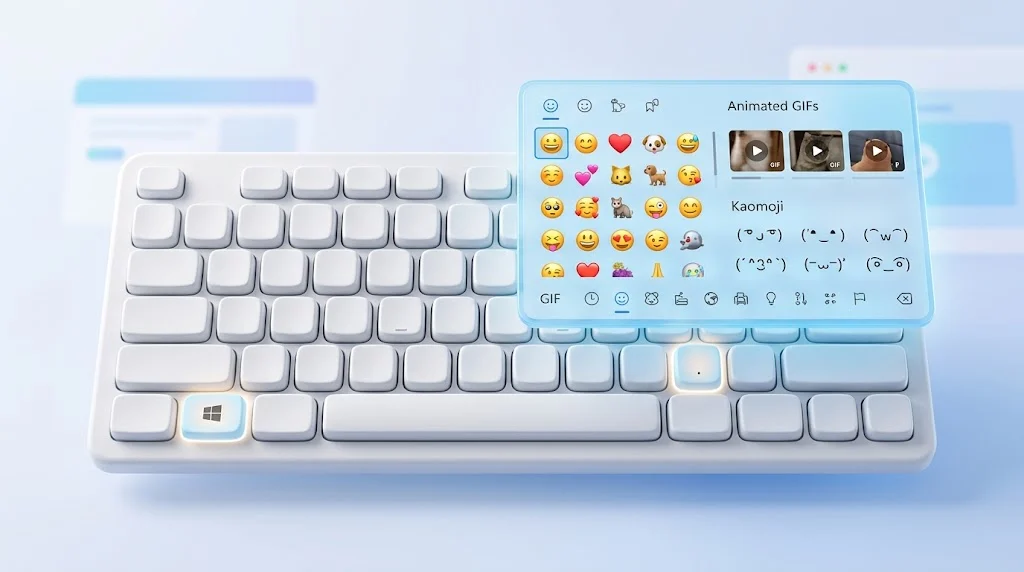
The main Windows emoji shortcut is Windows key + . (period). You can also press Windows key + ; (semicolon) to open the emoji panel. Microsoft documents both shortcuts for Windows 10 and Windows 11.
What Is the Windows Emoji Shortcut?
The Windows emoji shortcut is a keyboard combination that opens the built-in emoji panel while you are typing.
The primary shortcut is:
Windows key + . (period)
An alternative is:
Windows key + ; (semicolon)
Once the panel opens, you can select an emoji with your mouse or search for one by typing its name. Microsoft also describes the panel as a place to access GIFs, kaomoji, and symbols.
This means you do not need to visit an emoji website just to copy and paste a character.
How to Open the Emoji Keyboard on Windows
Follow these simple steps:
- Open the app or text field where you want to insert an emoji.
- Click inside the text area.
- Press Windows key + . (period).
- The emoji panel should appear.
- Search for an emoji or browse the available categories.
- Select the emoji you want.
- It will be inserted into the active text field.
Microsoft also lists Windows key + ; as another shortcut for opening the emoji panel.
Example
If you are writing:
Have a great day
Place your cursor after the sentence, press Windows + ., search for a smile emoji, and select the one you want.
The emoji will be inserted directly into the text field.
What Can You Find in the Windows Emoji Panel?
The panel is not limited to standard smileys.
Depending on your Windows setup and available features, it can provide access to:
- Emojis
- GIFs
- Kaomoji
- Symbols
- Emoji search
- Recently used characters
Microsoft’s current Windows keyboard guidance specifically describes the emoji panel as providing emojis, GIFs, and kaomoji, while its accessibility documentation also describes access to symbols and clipboard history through the panel interface.
This makes the shortcut useful for more than casual messaging.
How to Search for an Emoji on Windows
You do not have to scroll through every emoji category.
After opening the panel with Windows + ., use its search field and type a word related to the emoji you need.
For example, you can search for terms such as:
- smile
- heart
- laughing
- food
- animal
- celebration
- hand
- flower
- star
Microsoft’s accessibility guidance confirms that the emoji panel can be searched by name. For example, searching for “arrow” can return characters with arrow in their names.
This can be faster than manually browsing the categories.
Windows Emoji Shortcut on Windows 11
Windows 11 supports the emoji keyboard shortcut Windows + . and Windows + ;.
The emoji panel can be opened while entering text, allowing you to choose emojis and other expressive characters. Microsoft lists these shortcuts in its Windows 11 keyboard shortcut documentation.
Recent Windows 11 updates can change individual features or their availability on eligible devices, so the exact panel experience may vary by Windows version and device configuration.
Windows Emoji Shortcut on Windows 10
Windows 10 also supports the emoji panel shortcut.
Press:
Windows + .
Microsoft’s Windows keyboard guidance specifically documents the emoji panel shortcut for Windows 10 as well as Windows 11.
If the shortcut does not appear to work, first make sure your cursor is active inside a text field.
Windows + . vs. Windows + ;
Both shortcuts open the emoji panel.
| Shortcut | What It Does | Best Use |
|---|---|---|
| Windows + . | Opens the emoji panel | Main shortcut for emoji access |
| Windows + ; | Opens the emoji panel | Alternative when the period shortcut is inconvenient |
| Windows + V | Opens clipboard history when enabled | Finding copied text and items |
| Windows + H | Opens the dictation toolbar | Speaking text instead of typing |
| Windows + Shift + S | Captures part of the screen | Quick screenshots |
Microsoft lists Windows + . and Windows + ; for the emoji panel, Windows + V for clipboard history, and Windows + Shift + S for partial screen capture. Microsoft also documents Windows + H for opening the dictation toolbar.
Related Windows Keyboard Shortcuts
If you are learning the Windows emoji shortcut, these related commands can also make everyday typing and computer use easier.
| Shortcut | Official Function | When It Is Useful |
|---|---|---|
| Windows + . | Open emoji panel | Insert emojis, GIFs, kaomoji, and symbols |
| Windows + ; | Open emoji panel | Alternative emoji shortcut |
| Windows + V | Open clipboard | Access copied items |
| Windows + H | Open dictation | Enter text with your voice |
| Windows + Shift + S | Screen snipping | Capture part of the screen |
| Windows + L | Lock the PC | Quickly secure your computer |
| Windows + Left Arrow | Snap window left | Arrange windows side by side |
| Windows + Right Arrow | Snap window right | Move a window to the right side |
| Windows + K | Open Cast | Connect to a compatible display |
| Windows + T | Cycle through taskbar apps | Navigate open taskbar items |
These are documented Windows shortcuts, although some behavior can vary by application or device configuration.
What to Do If the Windows Emoji Shortcut Is Not Working
If Windows + . does not open the emoji panel, try these basic checks.
1. Click inside a text field
The shortcut is intended for text entry. Click inside a message box, document, browser field, or another place where text can be entered.
2. Try the alternative shortcut
Use:
Windows + ;
Microsoft lists both shortcuts for opening the emoji panel.
3. Check whether the keyboard is responding
Try pressing the Windows key by itself.
If it does not respond normally, the issue may involve the keyboard or Windows configuration rather than the emoji panel itself.
4. Try another application
Some applications can change or limit how keyboard shortcuts behave. Microsoft notes that shortcut behavior can vary between applications.
Testing the shortcut in another text field can help determine whether the problem is application-specific.
5. Check your Windows version
Windows 10 and Windows 11 both support the documented emoji panel shortcut, but individual features can vary depending on the Windows version and device.
Can You Use the Windows Emoji Shortcut in Word and Other Apps?
Generally, the shortcut can be useful wherever Windows allows text input and the application does not override the keyboard combination.
You can try it in places such as:
- Word documents
- Email composition boxes
- Messaging apps
- Web forms
- Social media posts
- Notes
- Search fields
However, an application can change how keyboard shortcuts behave. Microsoft specifically notes that some shortcuts may vary between applications.
If it works in one text field but not another, the application may be handling the keyboard input differently.
How to Insert Symbols With the Windows Emoji Shortcut
The Windows emoji panel can also help you access symbols.
Press:
Windows + .
Then look for the Symbols section.
Microsoft explains that the emoji panel can provide access to symbols such as punctuation and other special characters.
This can be useful when you need a character that is not printed directly on your physical keyboard.
How to Insert GIFs With the Windows Emoji Shortcut
The Windows emoji panel is also connected with GIF selection.
After opening the panel, you can switch from emojis to GIFs where the feature is available. Microsoft describes the Windows 11 emoji keyboard as providing access to GIFs and kaomoji alongside emojis.
This makes the shortcut useful for casual conversations where a GIF communicates a reaction better than a single emoji.
How to Use Kaomoji With the Windows Emoji Panel
Kaomoji are text-based expressions made from characters rather than standard graphical emojis.
For example, you may find expressions similar to:
(^▽^)
¯\(ツ)/¯
The exact available collection can vary. Microsoft’s Windows guidance identifies kaomoji as one of the expressive options available through the emoji panel.
Common Mistakes With the Windows Emoji Shortcut
Pressing the wrong key
The primary shortcut uses the period key, not the number key or another punctuation key.
Use:
Windows + .
Forgetting to activate the text field
If no text field is active, the panel may not behave as expected.
Assuming the shortcut only works for emojis
The panel can also provide GIFs, kaomoji, and symbols.
Confusing the emoji panel with the touch keyboard
Windows provides several different keyboard and text tools. The emoji panel is specifically designed for quick access to emojis and related expressive content.
Realistic Examples
Sending a message
Happy Friday! 🎉
Open the message field, press Windows + ., search for “party,” and choose 🎉.
Adding an emoji to an email
Thanks for your help! 😊
The shortcut lets you insert the emoji without leaving the email window.
Adding a symbol
If you need a special symbol, open the panel with Windows + . and switch to the symbols section.
Finding a specific emoji
Type a related word into the emoji panel’s search field rather than scrolling through categories.
Copy and Paste the Windows Emoji Shortcut
The shortcut itself is a keyboard command, so it cannot be copied and pasted like an emoji.
Windows + .
Alternative:
Windows + ;
If you need the Windows logo character for reference, you can also use:
⊞
The actual keyboard shortcut requires pressing the Windows logo key together with the period or semicolon key.
Frequently Asked Questions
What is the Windows emoji shortcut?
The main Windows emoji shortcut is Windows + . (period). Windows + ; (semicolon) is an alternative shortcut that also opens the emoji panel.
What is the shortcut for emojis on Windows 11?
Press Windows + . or Windows + ; while typing. The emoji panel opens so you can search and select an emoji.
Does the Windows emoji shortcut work on Windows 10?
Yes. Microsoft documents the emoji panel shortcut for both Windows 10 and Windows 11.
What does Windows + . do?
Windows + . opens the emoji panel. The panel can provide emojis and access to other expressive options such as GIFs, kaomoji, and symbols.
What is the Windows shortcut for symbols?
Press Windows + . to open the emoji panel, then select the symbols section. Microsoft documents this method for accessing special characters.
What is Windows + V?
Windows + V opens clipboard history when the feature is enabled in Windows settings.
What is Windows + H?
Windows + H opens the dictation toolbar in Windows, allowing you to enter text using your voice.
Why is my Windows emoji shortcut not working?
First, click inside a text field and try Windows + . again. You can also try Windows + ; or test the shortcut in another application because some apps can change keyboard shortcut behavior.
Can I search for emojis on Windows?
Yes. After opening the emoji panel, you can type a word into its search field to find matching emojis and other characters.
Conclusion
The Windows emoji shortcut gives you a quick way to add emojis without leaving the app where you are typing. The main command is Windows + ., while Windows + ; provides another way to open the same panel.
Beyond emojis, the panel can provide access to GIFs, kaomoji, and symbols. Once you know the shortcut, searching for the right character becomes much faster than manually finding and copying it from another website.
Read More Related Articles:
- Flushed Emoji Meaning | What It Really Says About Your …
- Talking Emoji Meaning | What It Really Says in Chats and …
- Pin Emoji Meaning | How to Use the Right Way in Modern …